

2. Platform Overview
This section explains how Opstream is structured, how information flows through the platform, and how different users interact with it.
Understanding these concepts will make it easier to configure workflows, submit requests, and interpret data across vendors, software, and analytics.
2.1 The Opstream Lifecycle
At a high level, Opstream supports a repeatable lifecycle:
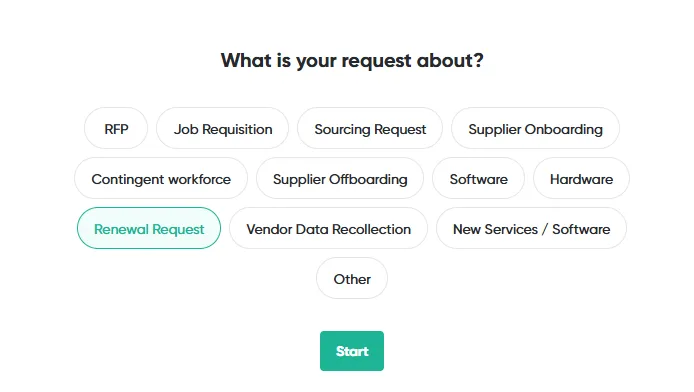
- Request Intake: A user submits a request to start a process (for example, a software purchase, vendor onboarding, contract review, or renewal).
-
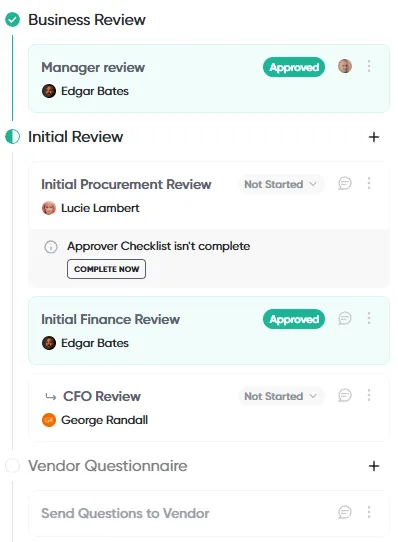
Review & Approval: The request moves through an approval workflow defined by Admins. Approvers review information, answer internal questions, and make decisions.
-
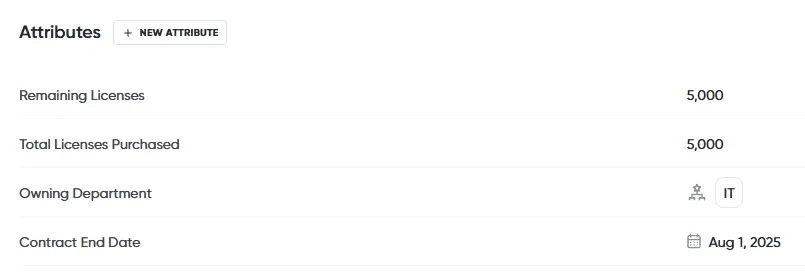
Vendor / Software Data Updates: Information collected during the request (answers, documents, attributes) is saved and mapped to the relevant Vendor, Software, or Request records.
-
System Actions: Based on the workflow configuration, Opstream may:
-
Create or update records
-
Send vendor questionnaires
-
Trigger reminders
-
Push data to integrated systems (ERP, e-signature, ticketing, etc.)
-
-
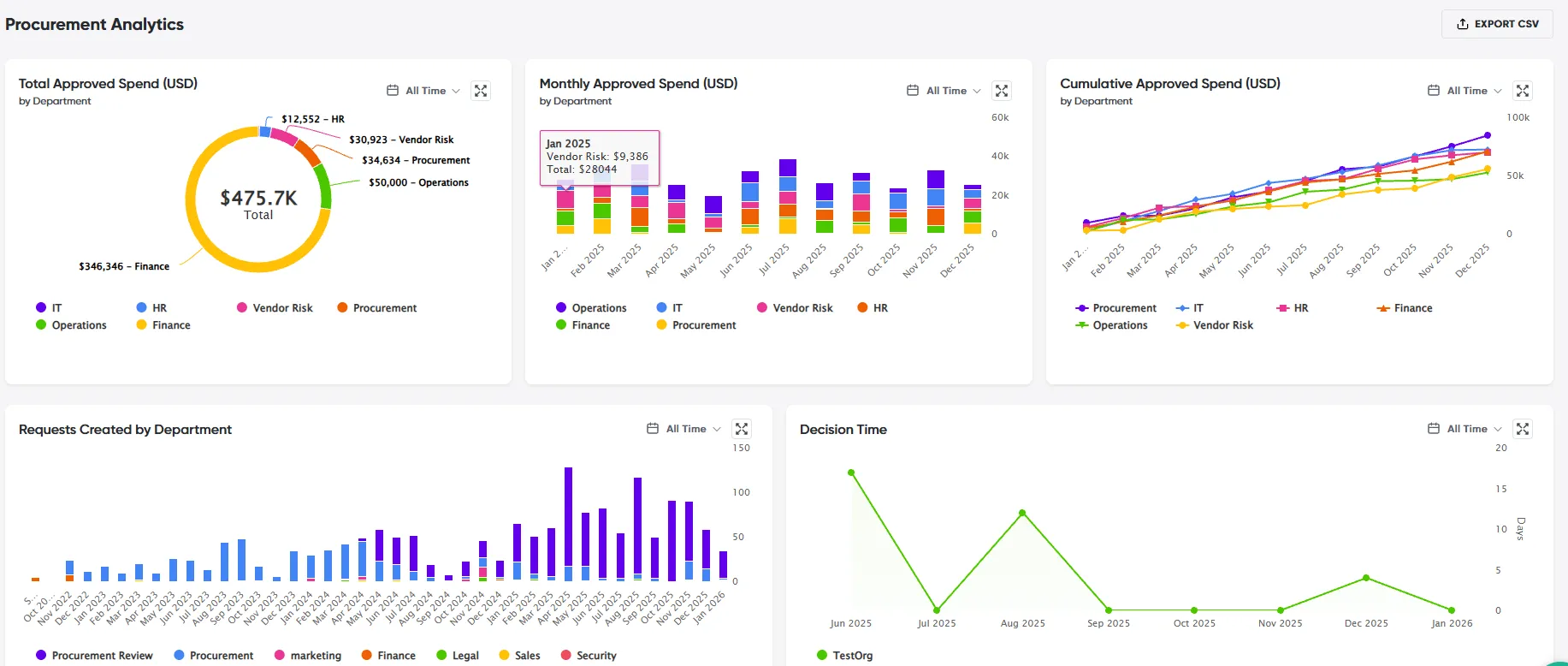
Visibility & Reporting: All activity feeds into Analytics, Events, and Insights, giving teams visibility into spend, pipeline, approvals, renewals, and risk.
This lifecycle repeats for each workflow your organization configures.
See Section 4: Role-Based Guides to understand how this lifecycle applies to your role. Admins: read Section 3 Quickstart first.
2.2 Key Concepts and Terminology
To understand the platform, it is important to define the core terms that govern how data is captured, structured, and moved:
| Term | Definition & Purpose |
|---|---|
| Requests | A structured form submitted by a requester to start a process. |
| Request Types (Schemas) | Templates that define: • The questions shown to requesters, approvers, and vendors • The approval workflow • Automation rules • Integrations used in the flow • Admins configure Request Types in Admin → Schema Editor. |
| Attributes | Custom data fields used to store information across vendors, software, requests and budgets. Attributes enable reminders, automation, filtering, analytics and integration mapping. Defined and managed in Admin → Attributes. |
| Vendors & Software | Structured records storing all knowledge about each vendor and product: Linked requests, spend data, documents, attributes, renewal dates, ownership and more. Found under the main top navigation: Vendors and Software. |
| Approval Flows | A step-by-step sequence defining who reviews a request and in what order. This sequence, built in the Approver Settings tab of the Schema Editor, dictates who must approve the request and when automated actions (like PO creation or notifications) occur. |
| Analytics | Dashboards and charts showing; request activity, spend (ERP required), pipeline, decision time, renewals, vendor insights. Available from the main top navigation. |
2.3 The Opstream Data Model
Opstream uses a connected data structure.
Understanding “where information lives” helps Admins design cleaner workflows and reporting.
| Module | Purpose |
|---|---|
| Requests | Store the current transaction (purchase, onboarding, renewal, assessment, etc.). Once completed, selected answers map into attributes or linked records. |
| Vendors & Software | Store the long-term, authoritative record: • Vendor attributes • Software attributes • Files • Renewal data • Risk information • Spend history • Linked requests |
| Attributes | Act as your organization’s vocabulary. • They can represent: • Date fields (renewal date, compliance expiration) • Financial values • Risk indicators • Boolean statuses • Text labels • Organizational metadata |
| Integrations | Keep external systems synchronized (e.g., POs created in ERP, signed documents returned, departments synced via SCIM). |
2.4 How Everything Connects
Opstream is designed so that actions in one area update others automatically:
-
Requests feed data into Vendors and Software
-
Attributes power workflows, reminders, and analytics
-
Integrations synchronize data with external systems
-
Approval decisions affect status, spend, and reporting
-
Events and reminders keep teams informed over time
This connected model reduces manual work, improves data quality, and creates a single operational view across teams.
2.5 What’s Next
With this overview in mind, you can:
-
Move on to the Quickstart to see how an Admin sets up the platform
-
Jump to Role-Based Guides to focus on your day-to-day tasks
-
Explore Deep Dive sections for detailed configuration and advanced workflows
This site uses anonymous analytics to work out which pages are useful. Visits are not tied to anyone, and nothing you type is recorded. See the Opstream privacy policy.