

5.7 Deep Dive: Playbook (Contract & Document Review)
5.7.1 What the Playbook Is
The Playbook is your organization’s standard for what “good” looks like in a contract or supporting document. You define your standards once – as a set of Playbook Items – and Opstream’s AI checks every contract, order form, DPA, or other vendor document against them, producing a Playbook Alignment Brief: findings, the exact evidence from the document, and suggested replacement language you can send to the vendor.
Navigation: Admin → Playbook (under Data Management)
Who does what: Admins configure the Playbook. Anyone with access to the Documents area – typically Approvers in Legal, Security, Finance, and Procurement – can run an analysis and read the report.
Key benefits:
-
One review standard, applied consistently to every document – no reviewer-by-reviewer interpretation
-
Findings arrive with a severity and a prescribed follow-up action, so reviewers know what to do next
-
Suggested clause language is ready to send, cutting the round-trip with the vendor
-
Compliant items are recorded too, so the report doubles as extracted key data for the document
⚠️ Don’t see Playbook in your Admin menu? The feature is enabled per organization. Contact your Opstream representative to have it turned on.
5.7.2 Setting Up Your Playbook (Admins)
Go to Admin → Playbook. The page has two tabs: Playbook Items (the standards to check for) and Templates (reference documents to compare against), each showing a count. All changes save automatically – there is no Save button.
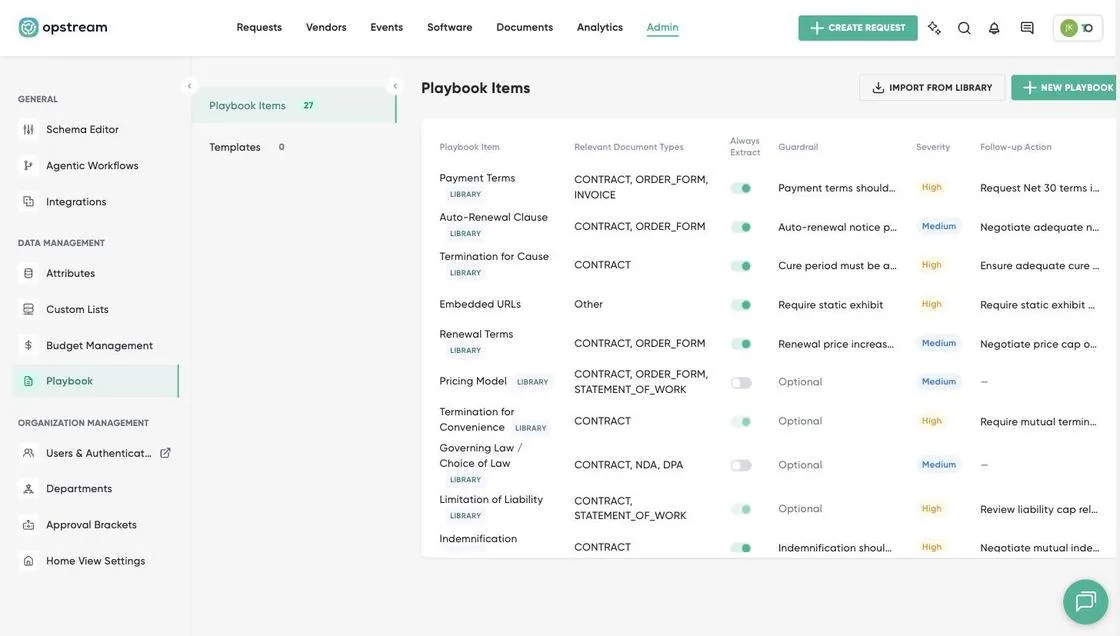
Admin → Playbook: the Playbook Items table, with Import From Library and New Playbook Item at the top right.
Each row in the Playbook Items table is one review standard – for example “Payment Terms”, “Auto-Renewal Clause”, or “Limitation of Liability”. The table shows:
-
Playbook Item – the name of the check. Items added from Opstream’s catalog carry a LIBRARY badge.
-
Relevant Document Types – where the item applies (CONTRACT, ORDER_FORM, INVOICE, NDA, DPA, STATEMENT_OF_WORK, Other).
-
Always Extract – on means the item is always evaluated and reported, even when the document is compliant.
-
Guardrail – the rule or threshold that defines an acceptable answer. Shows Optional when the item has none.
-
Severity – Low, Medium, High, or Blocker, driving the color and priority of the finding.
-
Follow-up Action – the recommended next step when the item fails, shown to reviewers for consistency.
Use the row menu (⋮) to Edit, Move Up / Move Down, or Delete an item. Order controls how items appear in the report.
5.7.3 Adding a Playbook Item
Option A – Import From Library (fastest). Click Import From Library to pick from Opstream’s pre-built catalog of review items covering contract terms, security compliance, and data protection. Filter by category or browse all; items already in your Playbook are marked Already added. Imported items keep their LIBRARY badge and can be edited afterwards.
Option B – Create a custom item. Click New Playbook Item and complete the fields below, then click Add Item.
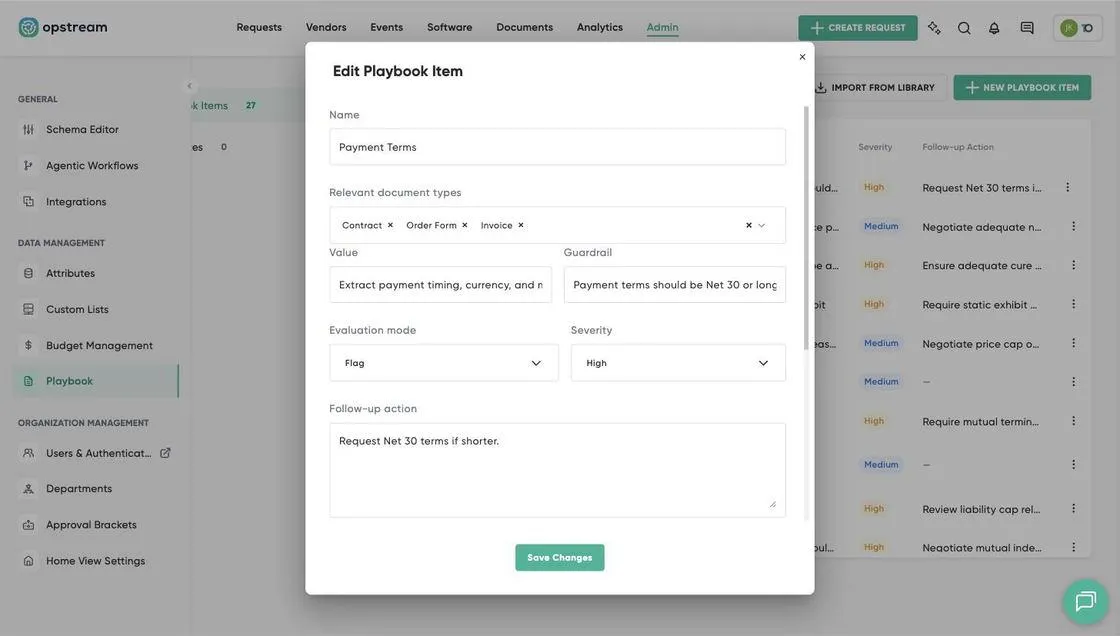
The Edit Playbook Item dialog: Name, Relevant document types, Value, Guardrail, Evaluation mode, Severity, and Follow-up action.
| Field | What it does |
|---|---|
| Name | The standard being checked, e.g. “Payment Terms”. |
| Relevant document types | Which document types this item applies to – Contract, Order Form, Invoice, NDA, DPA, and others. Scope items deliberately: an invoice check should not run against a SOC 2 report. |
| Value | What to extract, e.g. “Extract payment timing, currency, and net terms”. |
| Guardrail | The threshold or rule the document must not cross, e.g. “Payment terms should be Net 30 or longer”. |
| Evaluation mode | How strictly the item is enforced – see 5.7.4. |
| Severity | How serious a violation is: Low, Medium, High, or Blocker. Drives the report’s severity pills and filters. |
| Follow-up action | What the reviewer should do when the item is violated, e.g. “Request Net 30 terms if shorter.” |
| Preferred language | Your standard clause wording. Surfaced in the report as suggested replacement language. |
| Fallback language | Acceptable alternative wording if the vendor won’t accept your preferred clause. |
5.7.4 Evaluation Modes
| Mode | Behavior |
|---|---|
| Informational | Extract the value and show it in the report; no violation is raised. |
| Flag | Raise a finding when the document doesn’t meet the standard. |
| Required | The clause must be present; missing it is a finding. |
| Forbidden | The clause must not be present; including it is a finding. |
The Always Extract toggle in the items table switches an item between Informational and Flag. It is locked for Required and Forbidden items, since those always evaluate.
5.7.5 Templates
The Templates tab holds your organization’s own reference documents – for example your standard MSA. Click Add Template and complete Template Name, Document Type, Template File, and an optional Description.
During analysis, Opstream compares the vendor’s document against the matching template and reports template gaps – sections your template has that the vendor’s document is missing. This is what surfaces the clause that quietly disappeared from your paper.
5.7.6 Running an Analysis
Analysis is triggered per document – it does not run automatically on upload. Start it from either place:
-
From the Documents tab: find the document, open its row menu (⋮), and click Analyze against playbook.
-
From a request, vendor or software: open the Files & Links tab and run the analysis on the relevant file record – useful mid-approval, when the contract arrives attached to the request you’re reviewing.
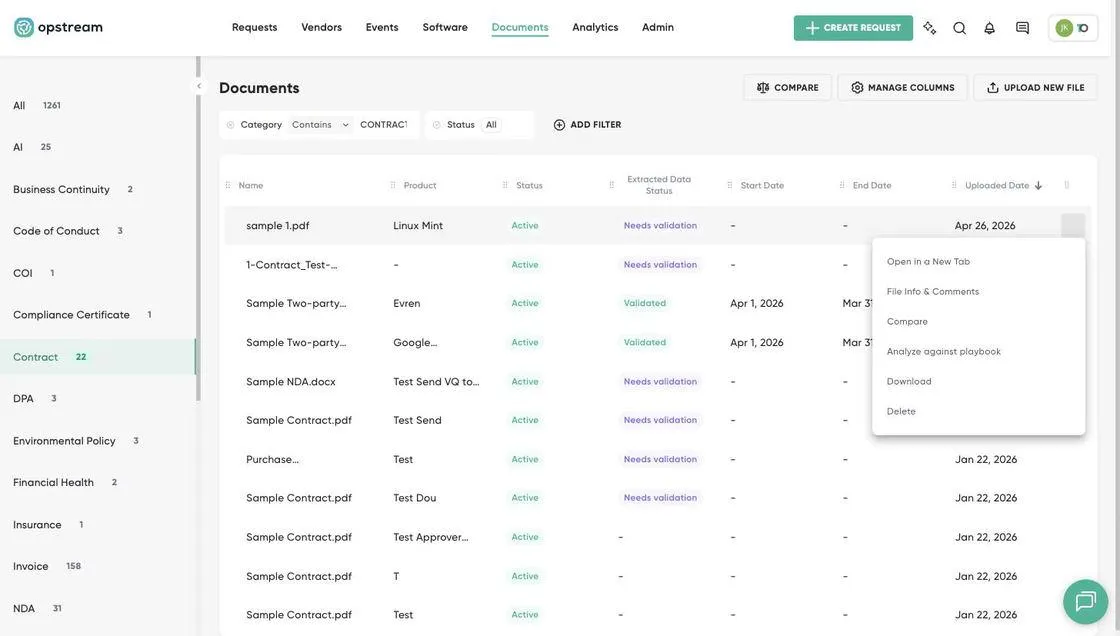
The Documents table with a row menu open, showing the Analyze against playbook action.
The report page opens and shows progress while the analysis runs – typically under a couple of minutes. It’s safe to refresh or come back later; the report resumes where it left off.
5.7.7 Reading the Playbook Alignment Brief
The report is titled Playbook Alignment Brief: {document name}, and the Selected Document card shows which playbook was used and when the analysis ran.
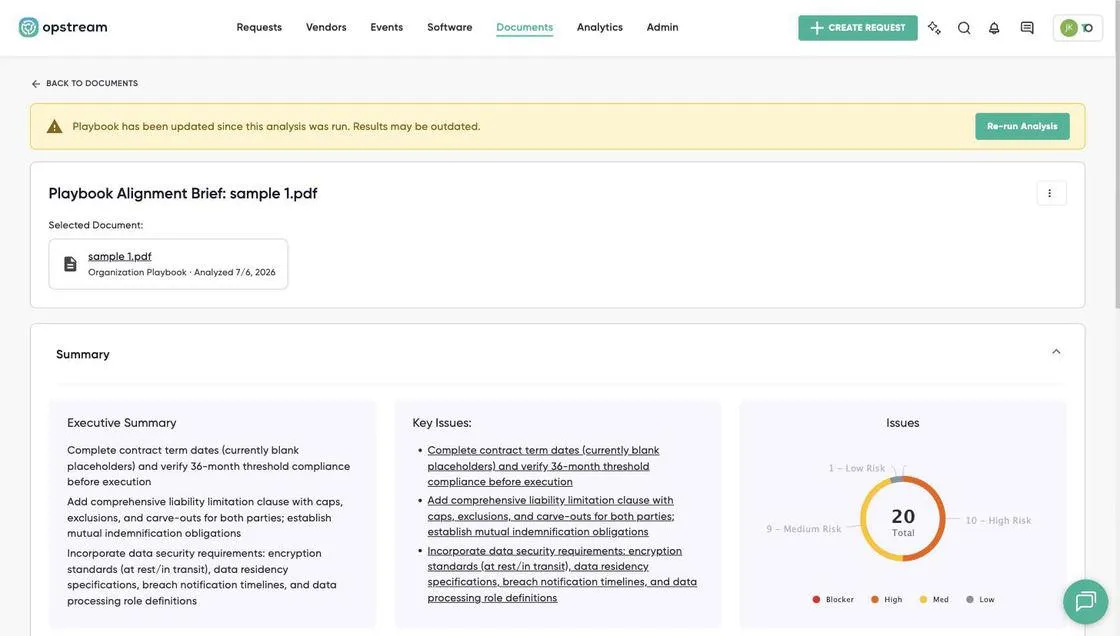
The Playbook Alignment Brief: the outdated-results banner, Selected Document card, and the Summary panel.
Summary
-
Executive Summary – the most important things to address, in plain language.
-
Key Issues – the top findings, linked so you can jump straight to their detail.
-
Issues – a severity breakdown of every finding (Blocker / High / Med / Low) with the total in the center.
-
Next Steps – recommended follow-ups, e.g. which teams to engage before signing.
All Issues
Filter findings by severity using the chips, then click any finding in the list to see its detail. Each list entry shows its status underneath the name – the playbook item it breached, Compliant, or Missing.
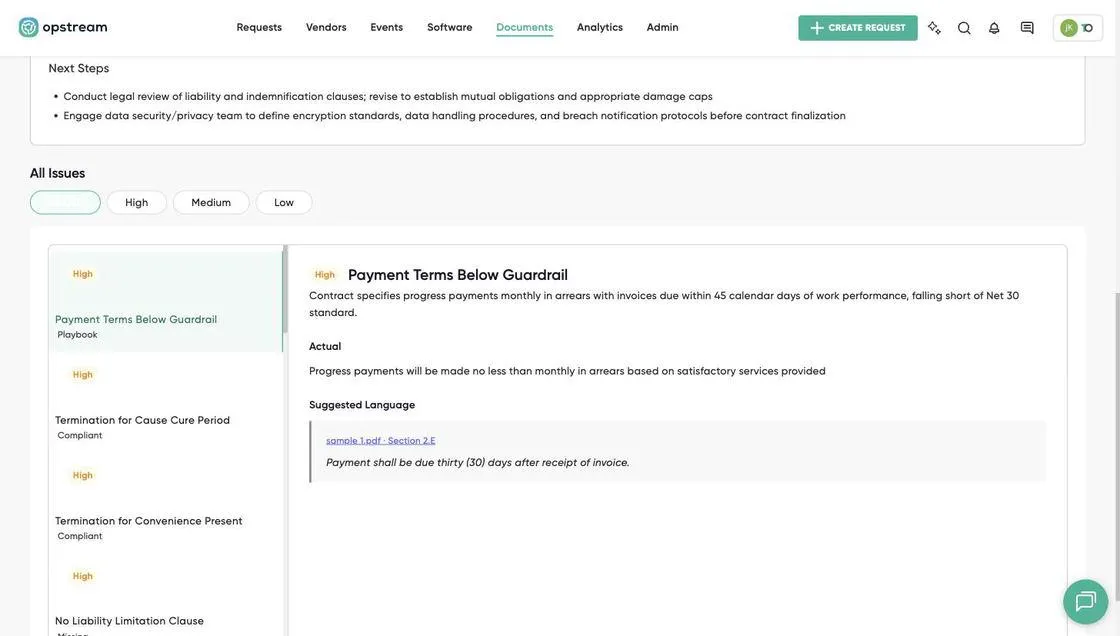
All Issues: severity filter chips, the findings list, and the detail panel with Actual and Suggested Language.
-
Description – what the issue is and why it matters.
-
Actual – the exact language found in the vendor’s document.
-
Playbook – your standard for this item.
-
Suggested Language – your preferred (or fallback) clause wording, with a link to the exact section in the document, ready to send to the vendor.
Finding types: threshold violations (a guardrail was crossed), off-standard terms, missing required clauses, forbidden clauses that are present, and template gaps. Compliant items are recorded as well, so the brief also serves as a structured summary of the document’s key terms.
Keeping results fresh
-
If the Playbook has changed since the analysis ran, a banner reads “Playbook has been updated since this analysis was run. Results may be outdated.” – click Re-run Analysis to refresh it.
-
Opening the report for a document always shows its latest analysis, so there’s no need to re-run for a document you’ve already reviewed.
-
Use the header menu (⋮) to Export to PDF and share the report outside Opstream.
5.7.8 Best Practices
-
Start from the Library, then tailor. Import the closest item and adjust the guardrail, severity, and follow-up wording to your policy rather than writing from scratch.
-
Set severity deliberately. Reserve Blocker for genuinely deal-stopping issues – if everything is a Blocker, the severity filter stops being useful.
-
Scope items to the right document types. This is the single biggest source of report noise.
-
Use Informational for context, Flag for enforcement. Extract values you always want to see; flag only what you would actually push back on.
-
Write follow-up actions as instructions. “Request Net 30 terms in writing” beats “payment terms issue”.
-
Fill in Preferred and Fallback language. These are what turn a finding into a redline the reviewer can send without drafting.
-
Upload your standard paper as a Template for each document type you negotiate – it’s how template gaps get caught.
💡 Tip for Legal Approvers: work the Blocker and High findings first, then use Suggested Language as the starting point for your redline – it already reflects your approved fallback position.
5.7.9 FAQ
| Question | Answer |
|---|---|
| Who can configure the Playbook? | Admins only, under Admin → Playbook. Anyone with Documents access can run analyses and read reports. |
| How many playbooks can we have? | One organization-wide Playbook. Use each item’s Relevant document types to vary standards by document type. |
| Does analysis run automatically on upload? | No. It’s triggered per document – from the Documents table or a request’s Files & Links tab. |
| Can I re-use a previous analysis? | Yes. Opening a document’s report shows its latest analysis; re-run only when the report is marked outdated or you want a fresh pass. |
| What documents work best? | Vendor contracts and related legal documents – MSAs, order forms, DPAs, SLAs – anywhere you have standards worth enforcing. |
| Do I need to save my changes? | No. The Playbook page saves automatically. |
Related: Section 4.2.9 (The Documents Menu), Section 6.1.1 (AI Document Extraction and Document Comparison).
This site uses anonymous analytics to work out which pages are useful. Visits are not tied to anyone, and nothing you type is recorded. See the Opstream privacy policy.