

4.3 Admin Guide: Configuration and System Governance
As an Admin, you are responsible for configuring, maintaining, and governing how Opstream works across the organization.
They design workflows, define the data model, manage users and permissions, and ensure processes scale cleanly over time.
Admins typically come from Procurement, Operations, IT, or Platform Ownership.
4.3.1 What Admins Are Responsible For
Admins manage the structure and behavior of Opstream, including:
-
Defining request types and workflows
-
Configuring approval logic and escalation rules
-
Managing integrations with external systems
-
Defining and maintaining the data model (attributes)
-
Controlling user access, roles, and departments
-
Ensuring data quality, governance, and consistency
-
Surfacing the right information to the right users
You do not need to be involved in every request, but they ensure that requests run correctly.
4.3.2 Admin Navigation Overview

You access configuration through the Admin area, which is available from:
-
The Admin button in the main navigation
-
The Admin option in the Profile menu
Both entry points open the same Admin workspace.
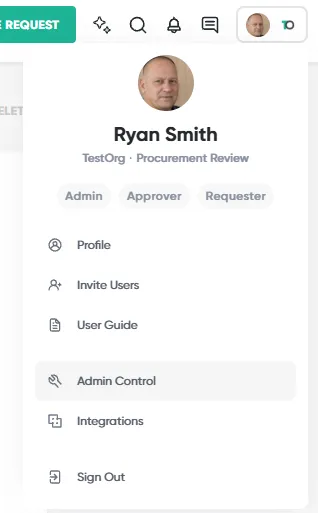
Global Admin Sidebar
All Admin configuration is organized in a dedicated left sidebar, grouped by function:
General
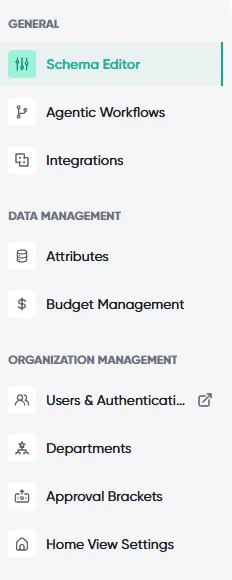
Used to define how requests are structured and processed:
-
Schema Editor – Create and manage request types and workflows
-
Agentic Workflows – Configure reminders and automated request creation
-
Integrations – Connect Opstream to ERP, e-signature, identity, and notification tools
Data Management
Used to define and govern the data model:
-
Attributes – Create and manage vendor, software, request, and budget attributes, including who can view, edit, or see each one
-
Custom Lists – Create reusable option lists and connect them to form questions (if enabled)
-
Budget Management (Add-On) – Configure budgets, ownership, and spend tracking
-
Playbook (Add-On) – Define the clauses, terms, and reference templates Opstream checks documents against (see Section 5.7)
-
Invoice Reconciliation (Add-On) – Configure the Invoice Request Type and its approval flow for AI-assisted invoice intake
-
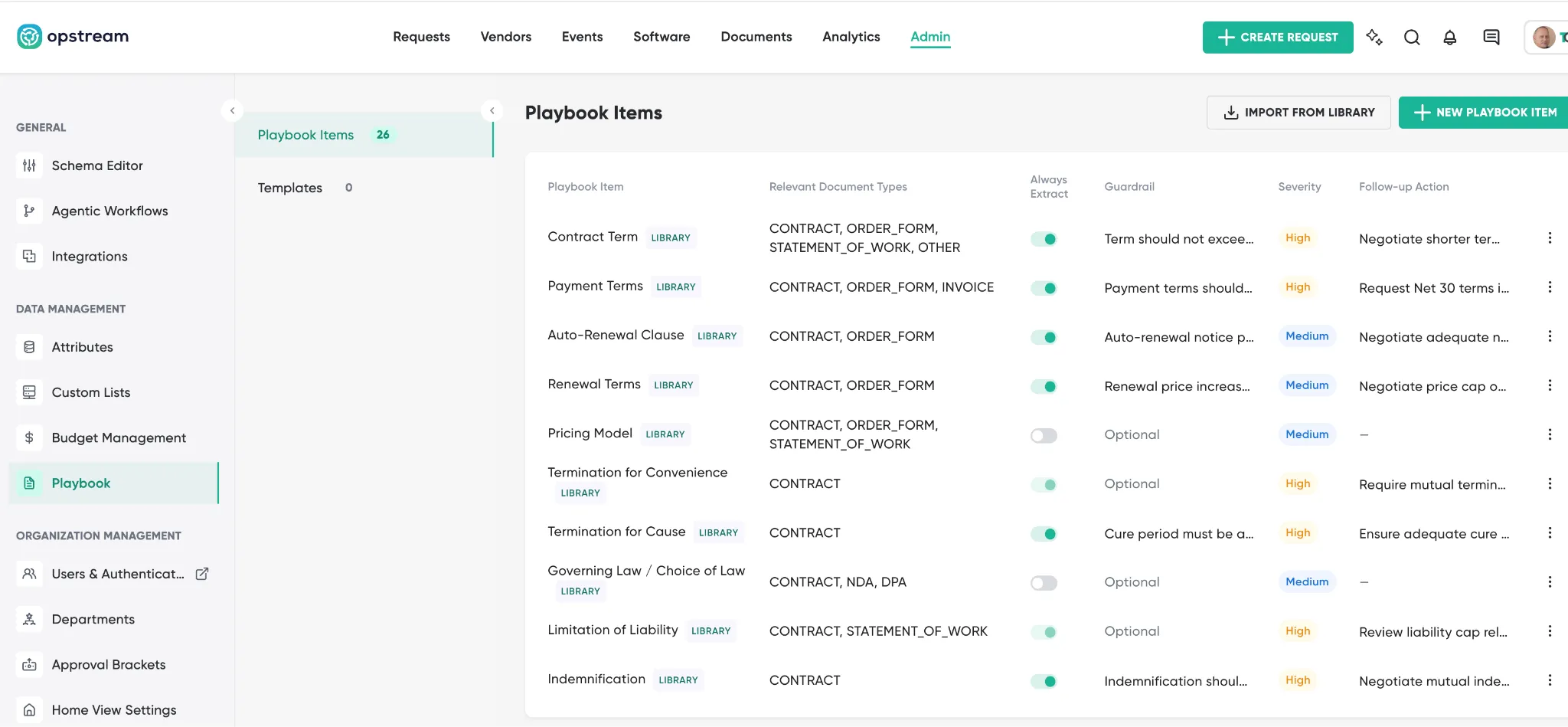
Organization Management
Used to manage structure, access, and governance:
-
Users & Authentication – Manage users, roles, and login settings
-
Departments – Define organizational structure and ownership
-
Approval Brackets – Configure spend-based approval authority
-
Home View Settings – Control what different user roles see on their Home page
4.3.3 Core Admin Workflows
While Admins configure many parts of Opstream, most work falls into a few recurring activities.
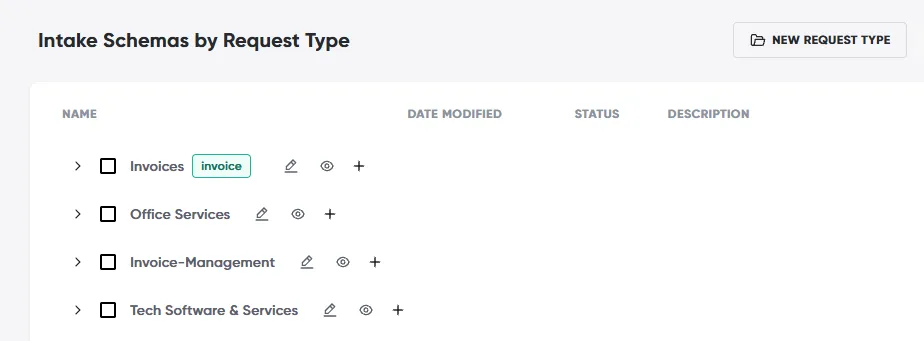
Admins define:
-
Which questions are asked
-
Who reviews requests
-
Which steps run in the workflow
-
What happens when a request is approved
This work is done in the Schema Editor and is covered in detail later in the guide.
Admins configure:
-
Approval order and conditions
-
Department- or role-based approvals
-
Spend thresholds using Approval Brackets
-
SLAs and escalation paths
Approval logic should be clear, predictable, and easy to maintain.
Admins define attributes that:
-
Store long-term information
-
Power automation and reporting
-
Keep data consistent across workflows
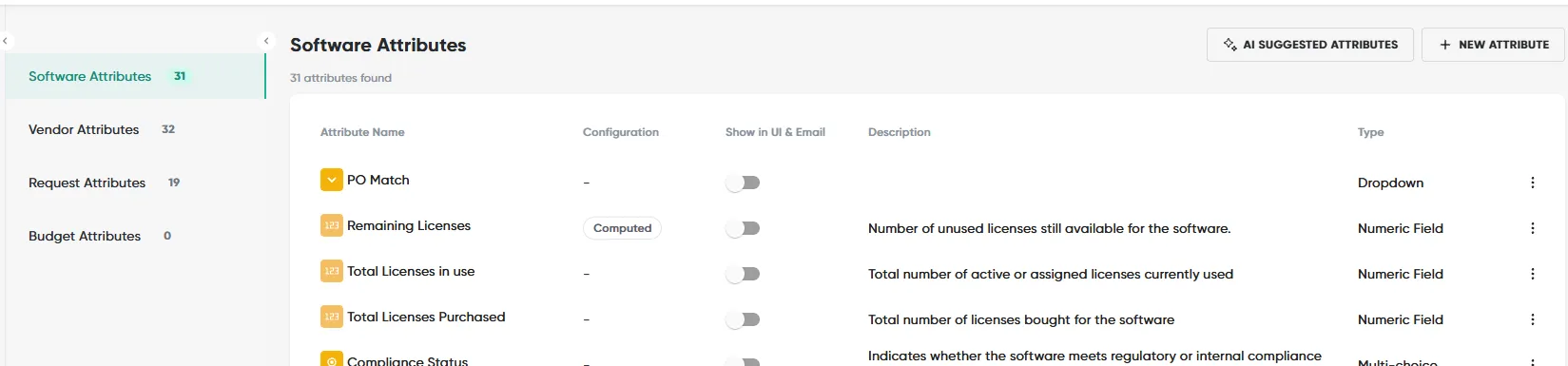
Changes to attributes can affect:
-
Existing workflows
-
Analytics
-
Integrations
For this reason, attribute changes should be made deliberately and documented.
Admins control:
-
Who can submit, approve, or configure
-
Department membership
-
Cost Center Owners
-
Viewer access for read-only visibility
This ensures that approvals route correctly and reporting reflects real ownership.
Admins use Agentic Workflows to automate actions that happen outside of a single request flow.
These workflows monitor data across the platform and trigger reminders or actions based on dates, conditions, or attribute values.
Agentic Workflows can be used to:
-
Send reminders before key dates (for example, contract renewals or certification expirations)
-
Trigger new requests automatically when conditions are met
-
Notify stakeholders without requiring manual follow-up
-
Enforce recurring processes consistently across vendors and software
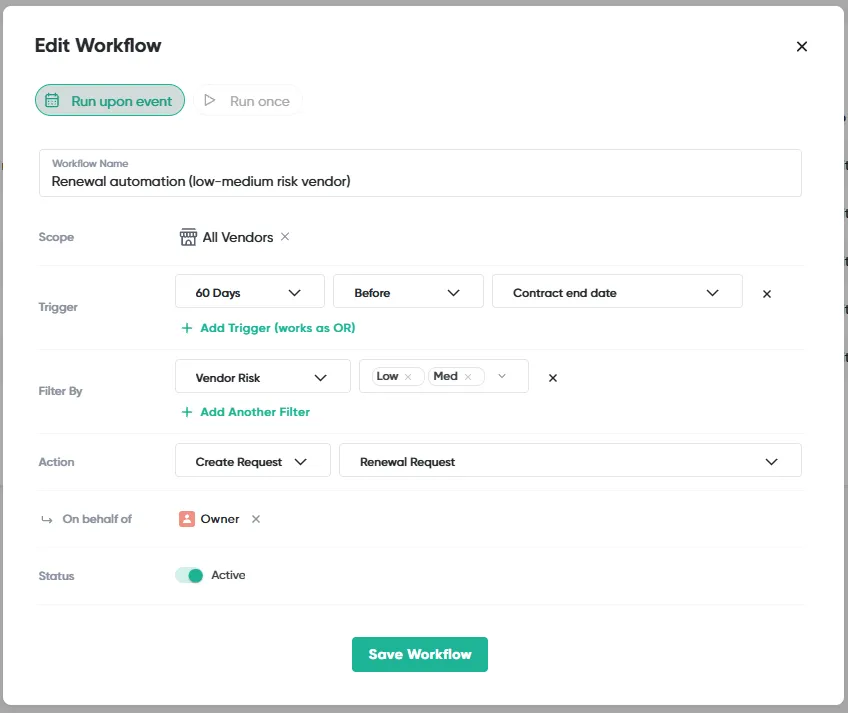
How Agentic Workflows Fit into the Platform
Unlike approval workflows (which run inside a request), Agentic Workflows:
-
Run continuously in the background
-
Evaluate Vendors, Software, and Requests over time
-
Are driven by attributes, not user actions
This makes them well-suited for long-term governance and operational hygiene.
- Customizing the User Interface (Home Page Details)
Admins can personalize the platform experience for different user types using Home Page Views. This allows Admins to design custom home dashboards for Limited Requester, Requester, Approver, and Admin roles.
Key Configuration Details:
-
Access: Configure views under Admin → Home View Settings.
-
Customization: Admins build fully customized layouts using widgets, including tables (Requests, Vendors, Software), charts (Spend, Pipeline, Decision Time), Approvals Pending Review, and links to policies or notes.
The customizable layout builder allows Admins to select which user roles and departments the view applies to.
-
Publishing: Views have two states: Draft (editable) and Live (visible to end users).
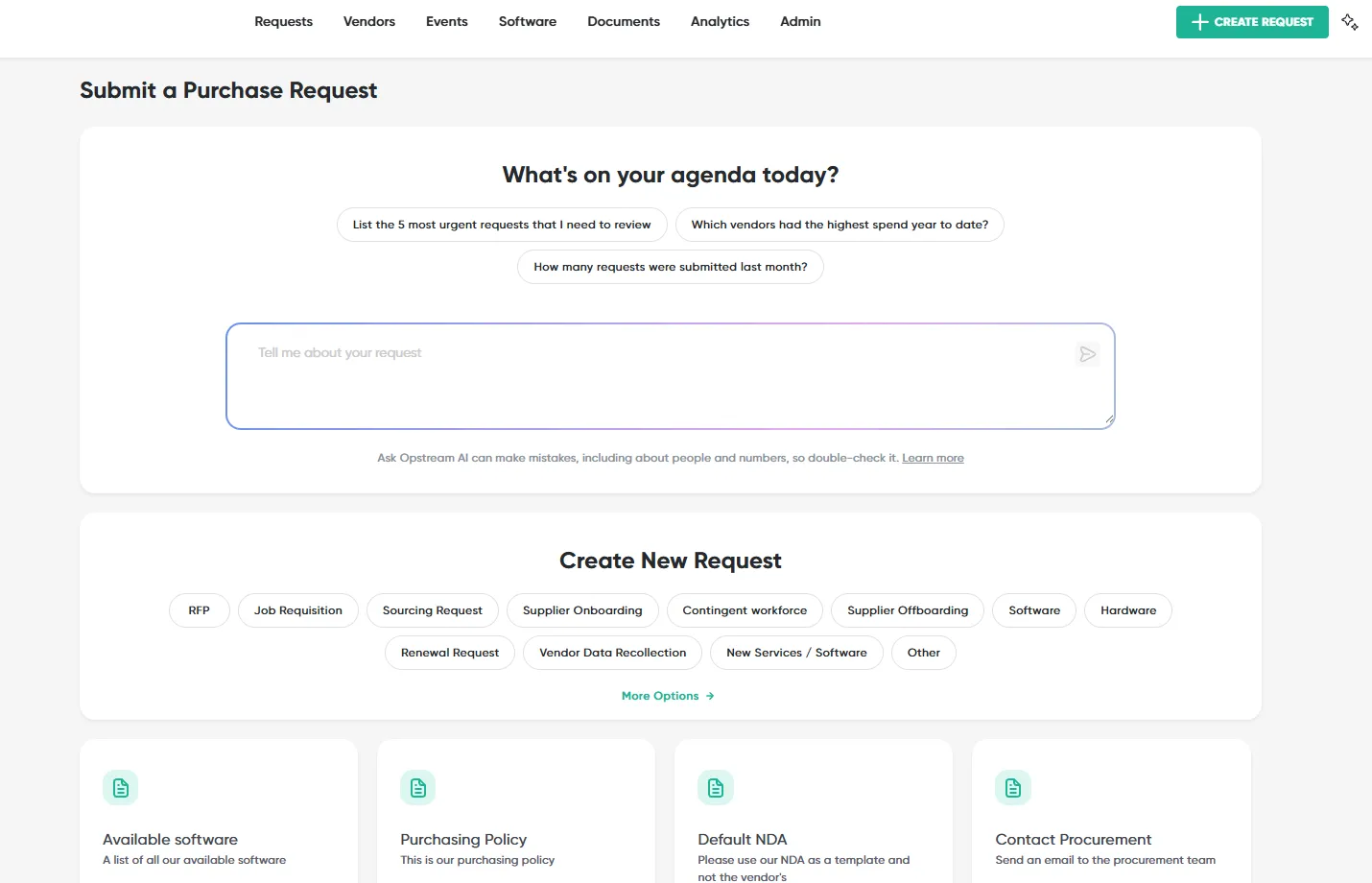
- Updating Purchase Orders (NetSuite)
Once a PO has been issued to NetSuite, Admins can still correct it – reopening the PO doesn’t require creating a separate update request.
-
Reopening: Click to edit the PO, enter a mandatory reason in the reopening dialog, and select Reopen request & edit PO. This is Admin-only – Requesters and Approvers can’t reopen a PO.
-
Editing: With the PO reopened, edit the allowed fields, then either Discard Changes (restores the original PO and returns it to its issued state) or Submit Now (validates the edits and resubmits the PO to NetSuite).
-
Pending sync banner: While edits haven’t been submitted yet, a banner on the PO flags that changes are pending and haven’t been saved in NetSuite, with a prompt to click Submit Now.
-
Once NetSuite confirms the update, the PO returns to its issued status. If NetSuite’s own approval workflow requires the updated PO to be re-approved, the PO’s status reflects that (e.g., back to Pending Approval) until it clears. If the submission to NetSuite fails, the task stays editable so an Admin can retry it.
-
Every reopen and update is recorded in the request’s Activity log – who reopened it, the reason given, what changed, and NetSuite’s response.
4.3.7 Governance Best Practices for Admins
Admins play a key role in keeping Opstream clean and scalable.
Recommended practices
-
Start simple and evolve workflows over time.
Reuse attributes and schemas instead of creating duplicates.
-
Use Approval Brackets instead of hard-coding approvers.
-
Document changes to schemas and attributes.
-
Review workflows and attributes periodically.
-
Avoid granting Admin access unless necessary.
This site uses anonymous analytics to work out which pages are useful. Visits are not tied to anyone, and nothing you type is recorded. See the Opstream privacy policy.