

5.10 Deep Dive: Notifications and Collaboration
This page explains how Opstream keeps people informed about requests (in the app, by email, and in Slack or Microsoft Teams) and how people work together on a request through comments, reassignment, search and exports.
5.10.1 Where Notifications Appear
| Channel | What you get | Can you act from it? |
|---|---|---|
| Reviews assigned to you, overdue reminders, your request approved or rejected, new comments, requests shared with you, export files | Yes: Approve / Reject buttons, and replying to a comment email | |
| Slack (if you connected it) | Reviews assigned to you, overdue reminders, your request approved or rejected, comments | Yes: approve or reject on the card, and reply to comments in the thread |
| Microsoft Teams (if you connected it) | Reviews assigned to you, overdue reminders, your request approved or rejected, comments and mentions | The buttons open the request in Opstream |
| Inbox (speech-bubble icon in the header) | Comment threads you are part of | Yes: open and reply |
| Bell (header) | Software and vendor date reminders, requests created on your behalf, and agentic workflow results | Open or dismiss |
The bell does not show approvals or comments. Look for those in your email, Slack or Teams, and in the Inbox.
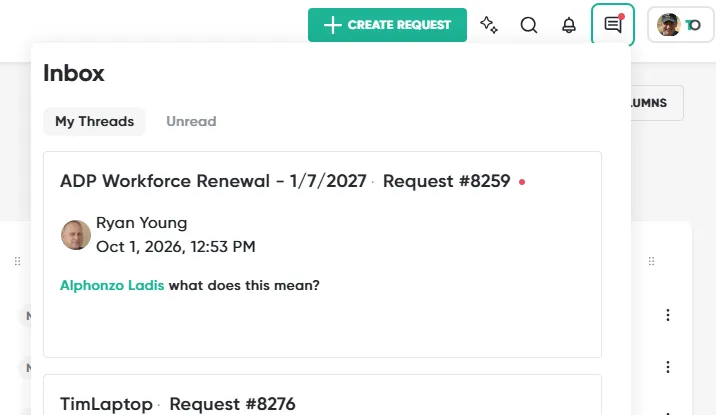
5.10.2 Email Notifications
Opstream emails you when:
- A review is assigned to you. The email has View Request plus Approve and Reject buttons.
- A review is overdue. You get a reminder at the halfway point of the step’s target time, and again when it is reached.
- Your request is approved or rejected.
- You are added as a “user to notify” on a workflow step. This email is for information only and has no approve buttons.
- Someone comments on a thread you’re part of, or mentions you.
- A request is shared with you or created on your behalf, or an export you asked for is ready.
Approving from email: clicking Approve or Reject opens the request in Opstream and starts that decision, so you can add a note or complete an approver checklist first. If the review has already been decided, nothing changes.
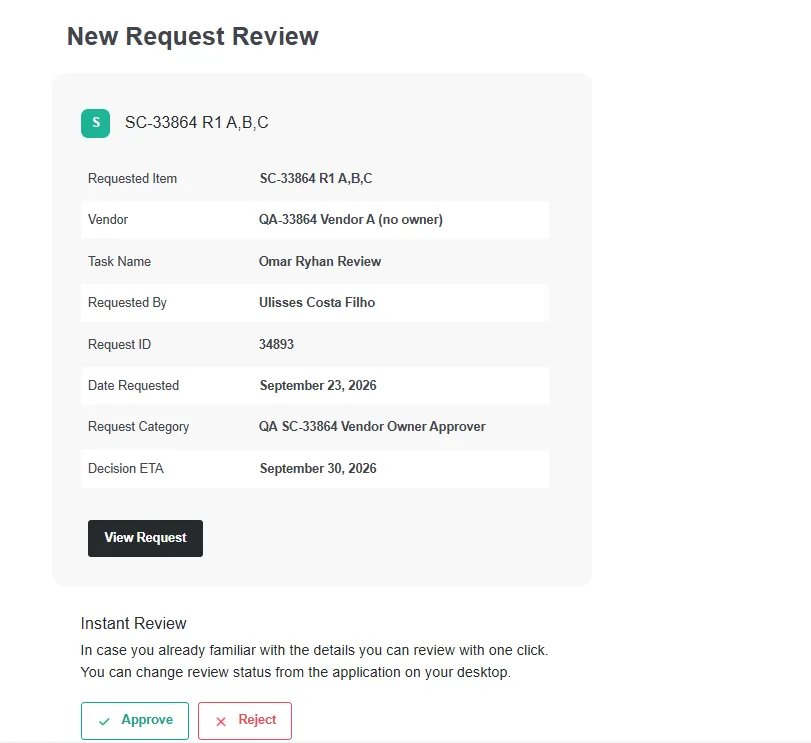
Replying by email: reply to a comment notification email and your reply is posted to the comment thread. Send the reply from the email address you use for Opstream.
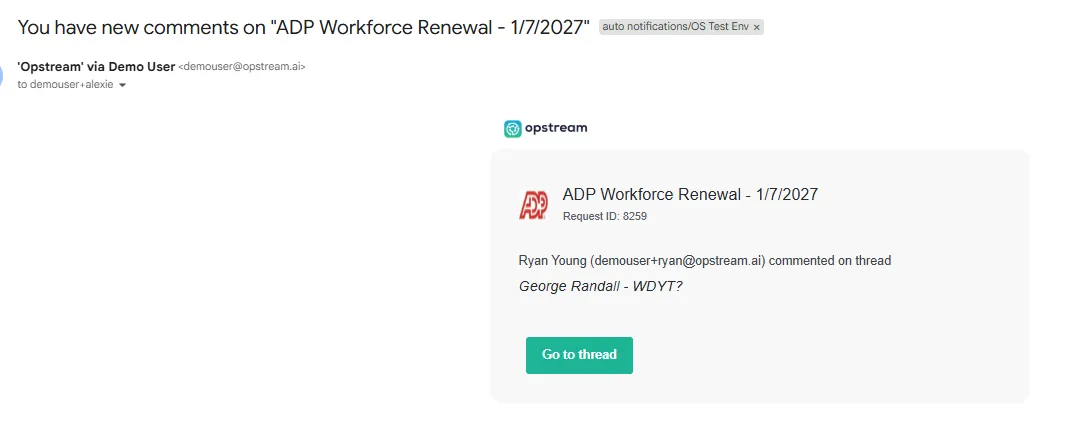
Email notifications can’t be turned off per user. Admins choose who gets notified on each workflow step (see Approval Flows).
5.10.3 Slack and Microsoft Teams
Each person connects Slack or Teams for themselves from profile menu → Integrations. For setup steps, see Personal Integrations.
In Slack:
- Approve on a review card records your approval straight away.
- Reject asks for an optional note first.
- View Details opens the request.
- Reply in the thread under a comment notification to post your reply to Opstream.
- Type
/opstream requestto get a link for creating a new request.
In Teams:
- Notifications arrive as a chat message and in your Teams Activity feed.
- Approve, Reject and View Details open the request in Opstream, where you complete the decision.
- Comment notifications have Open Thread.
- Message the Opstream app
requestfor a link to create a request,helpfor the list of commands, ordisconnectto unlink your account.
5.10.4 Comments and Mentions
You can comment on requests, vendors, software and documents.
-
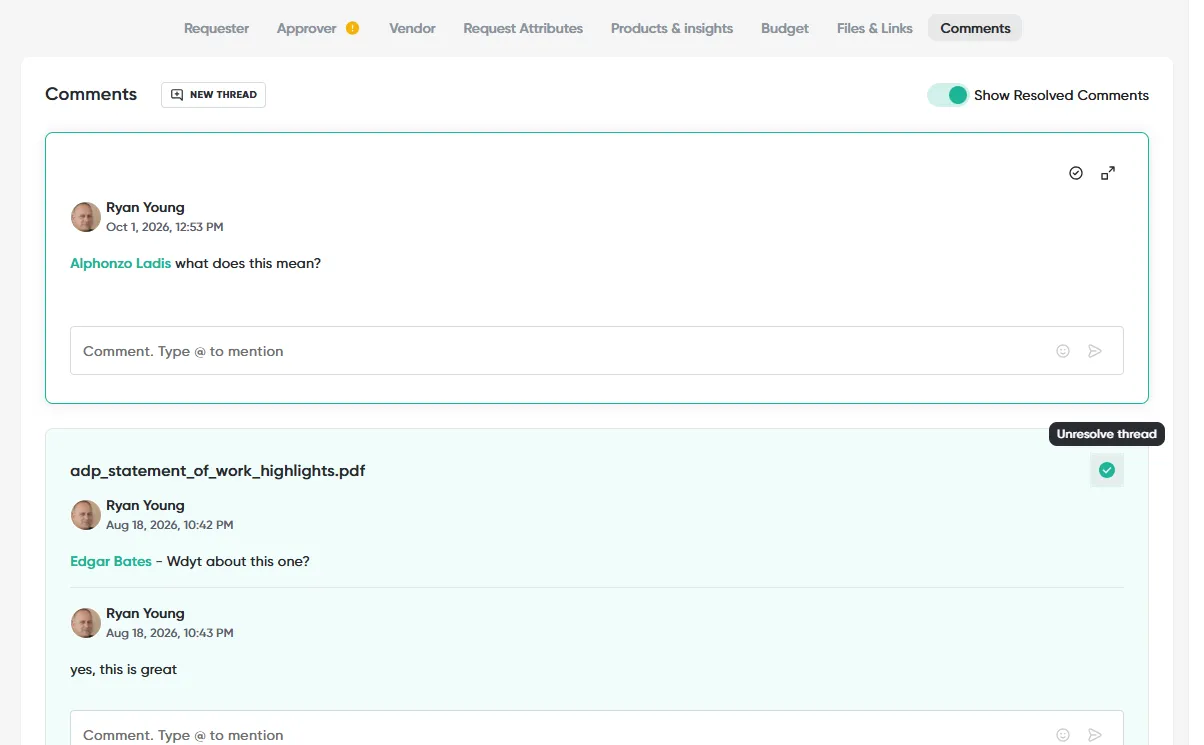
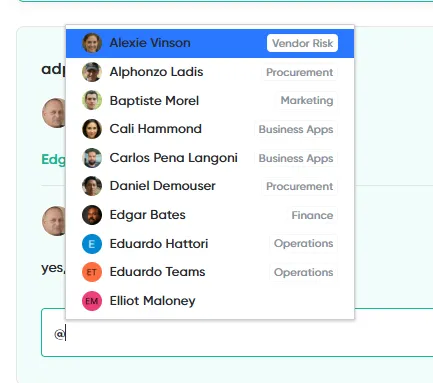
Start a thread: click NEW THREAD. Type @ to mention someone, and the people you mention are notified.
-
Who can read it: everyone who can view the record can read its comments. There are no private or internal-only comments, and vendors never see comments.
-
Mentioning someone without access: if you mention a person who can’t see the request, Opstream offers Post comment and Share access, which shares the request with them so they can read and reply.
-
Managing threads:
- Resolve thread when a discussion is finished, and Unresolve thread to reopen it.
- Turn on Show Resolved Comments to see resolved threads again.
- Show thread in context jumps to the part of the request a thread is about.
- You can edit or delete your own replies.
-
Emoji: the smiley button adds an emoji to your comment text.
5.10.5 When an Approver Is Away
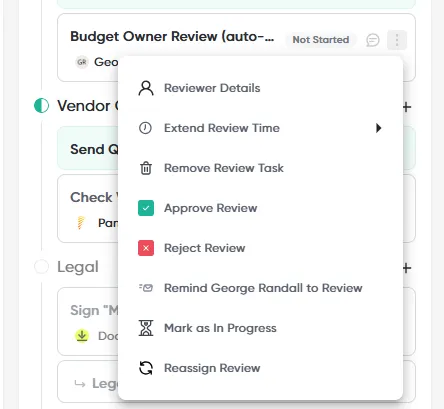
Opstream doesn’t have out-of-office or delegate settings, and it doesn’t move reviews automatically when someone is away. Instead, an Admin or Approver can use the review’s ⋮ menu on the request:
- Reassign Review gives the review to someone else.
- Extend Review Time gives the reviewer more time before the review is overdue.
- Remind {name} to Review sends a nudge.
- Add Reviewer to this request adds another approver (only users with the Approver role are listed).
5.10.6 Finding Things: Global Search
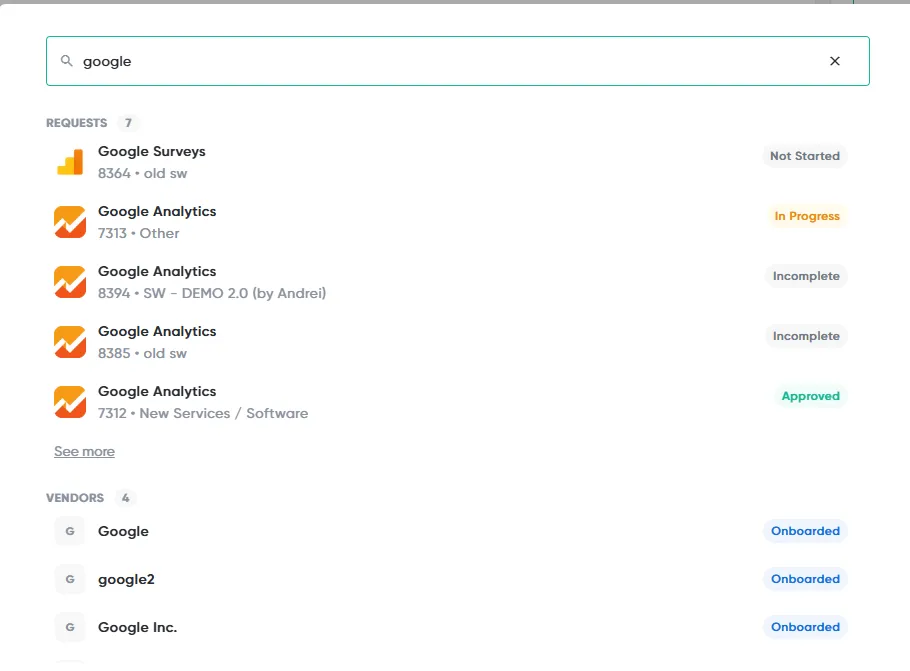
Click the magnifying glass in the header and search for requests, vendors, software or documents. Search matches:
- request titles and request ID numbers
- answers to request questions
- attribute values
- vendor and software names
- file and link names

Results are grouped into REQUESTS, VENDORS, SOFTWARE and DOCUMENTS, with See more under each group. Search tolerates small typos.
You only see results you have access to. Limited Requesters don’t see vendors or software.
5.10.7 Exporting Data
| Where | Button | How you get the file |
|---|---|---|
| Requests list | EXPORT CSV | By email, using your current filters and columns |
| A single request (⋮ menu) | Export CSV | Downloads straight away |
| My Vendors, My Software | Export CSV | By email |
| Dashboard | Export CSV | By email |
| Custom dashboard | Export dashboard tables | Downloads straight away (table widgets only) |
| Departments | Export CSV → Export CSV for Departments and Users | By email |
| Events | EXPORT | Downloads straight away |
For exports sent by email, confirm the address, choose CSV or XLSX, and submit. The file arrives by email shortly afterwards. Document Comparison and Playbook results have their own Export Results / Export to PDF options.
This site uses anonymous analytics to work out which pages are useful. Visits are not tied to anyone, and nothing you type is recorded. See the Opstream privacy policy.