

11.1 AI: MCP Connector
11.1.1 Overview
The Opstream MCP connector is a standardized interface that lets any compatible AI tool or agent access your organization’s Opstream data in a simple and secure way. It is built on MCP (Model Context Protocol), an open standard for connecting AI assistants to external systems, and works with any client that supports MCP connectors – such as Claude.
Through the connector, an AI assistant can read:
- Requests – your requests and their status, filtered and searched
- Request Types – the schemas your organization has published, with descriptions
- Vendors – the vendor list, vendor details, and top vendors by spend over any date range
- Software – the software products your organization owns, and their categories
- Documents – search across your organization’s files
- Users – the people in your organization
- Custom attributes – the custom fields defined for vendors, products and requests
- Your own profile – the connected user, their departments and permissions
Every answer comes from your organization’s live data, and every query runs as you:
- Authentication is per user, via OAuth. Each person connects with their own Opstream account; there are no shared keys.
- Access follows your role. Every query is scoped to the connected user’s organization and permissions – you see exactly what you would see in the app, nothing more. All Opstream roles can connect.
- Read-only. The connector cannot create, modify or delete anything in Opstream.
- Logged. Queries are logged for compliance and auditing, as with Ask Opstream.
The MCP connector is currently in Beta. Access is enabled per organization – contact your Customer Success Manager to get started.
11.1.2 Setup
11.1.2.1 Getting Access
Request the connection details from your Customer Success Manager. You will receive:
- the connector URL
- an OAuth Client ID – required for the connection; there is no client secret
The same details work for every user in your organization; each person authenticates with their own Opstream account when they connect.
11.1.2.2 Claude
Claude (claude.ai and Claude Desktop) supports Opstream as a custom connector. Setup takes about two minutes and is done once per user.
-
In your browser, log in to app.opstream.ai with the Opstream account you want to connect.
-
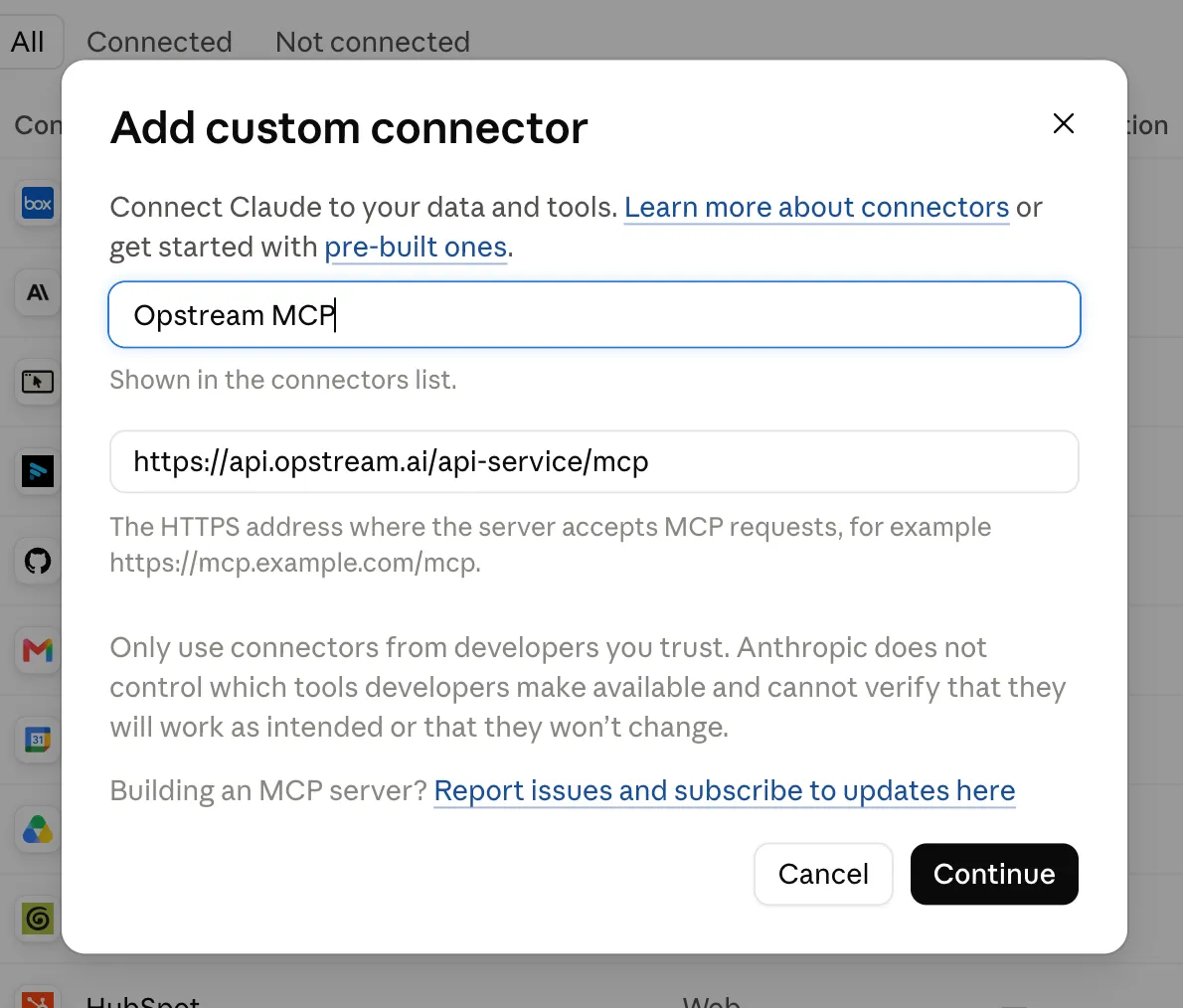
In Claude, open Settings → Connectors and click Add custom connector.
-
Fill in the connector details:
- Name:
Opstream - URL: the connector URL provided by your Customer Success Manager
- Name:
-
Expand Advanced settings and set the OAuth Client ID to the value provided by your Customer Success Manager. Leave OAuth Client Secret empty.
-
Click Add, then Connect. Your browser opens Opstream’s sign-in flow – approve it with the account you logged in with in step 1.
-
Start a new chat, make sure the Opstream connector is enabled in the tools menu, and ask a question – for example, “What are our top 10 vendors by spend this year?”
Verify you connected the right account. The connection binds to whichever account is logged in to Opstream in your browser at the moment you approve it. After connecting, ask Claude “What’s my user info?” – it will answer with the connected user and organization.
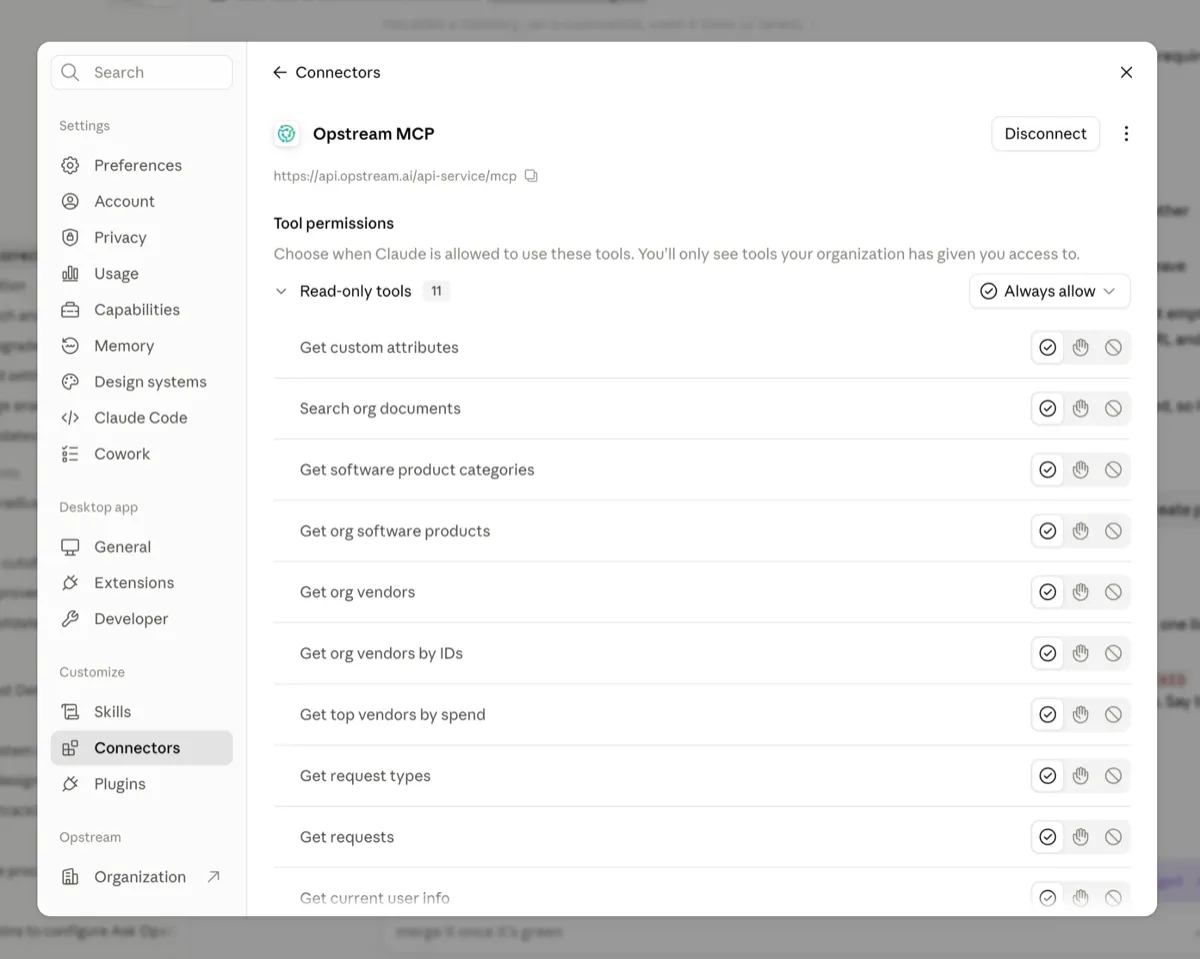
Optional: in Settings → Connectors → Opstream, set the connector’s tools to Always allow. Opstream’s tools are read-only, and this stops Claude from pausing to ask permission before each lookup.
11.1.2.3 Other AI Tools
Any AI tool that supports remote MCP connectors can connect to Opstream with the same URL and OAuth Client ID. The setup flow varies by tool, but the pattern is the same: add a custom (remote) MCP server, enter the URL, provide the Client ID where the tool asks for OAuth client credentials, leave the client secret empty, and approve the Opstream sign-in with your own account.
11.1.3 Common Use Cases
Track your requests
“Which of my requests are still waiting for approval, and who’s the bottleneck? Give me a brief every morning.”
Self-serve status checks without opening the app – for any Requester, and for Procurement leads watching the whole pipeline.
Analyze spend
“What are our top 20 vendors by spend this quarter?”
Live spend answers in the assistant you already use – then cross-reference them with your own spreadsheets or models in the same conversation.
Explore your software catalog
“What software do we own in the Design category? Tell me more about these apps – any overlapping tools?”
Instant software and category lookups, custom attributes included – useful for IT and software asset management.
Visualize your vendor landscape
“Make me an interactive heat-map of vendors by spend and risk.”
Because the conversation happens in your AI tool, the answer doesn’t have to stay a list – ask for a chart, a document or a summary for your team.
Automate cross-system workflows
“Check Opstream for newly approved software requests, then open the provisioning ticket in Jira and post to #it-onboarding in Slack.”
With the Opstream connector enabled alongside your other connectors – Slack, Jira, Smartsheet, Gmail and any other MCP connector – one agent can read Opstream and act in the tools where work happens.
Schedule recurring digests
“Every Monday, pull our top vendors by spend and upcoming renewal requests, update the renewal tracker in Smartsheet, and send me a digest.”
The connector is read-only, so these flows run in one direction: Opstream stays the procurement source of truth, and agents fan its data out into other systems.
11.1.4 FAQ
How do I get access?
The connector is in Beta and enabled per organization. Contact your Customer Success Manager for the connection details (URL and OAuth Client ID).
Which AI tools are supported?
Any tool that supports remote MCP connectors. This guide documents Claude setup step by step; see Other AI Tools for the general pattern.
Can the assistant change anything in Opstream?
No. The connector is read-only – it cannot create or update requests, vendors, or anything else. Cross-system workflows run in one direction, from Opstream out to other tools.
Will I see data I shouldn’t?
No. Every query is scoped to the connected user’s organization and role permissions – the connector shows exactly what that user would see in the app. Queries are logged for compliance and auditing.
How do I check which account is connected?
Ask your assistant “What’s my user info?” – it answers with the connected user and organization. Do this after every connect or reconnect: the OAuth flow binds to whoever is logged in to Opstream in your browser at that moment.
How do I switch to a different account or organization?
- In your browser, log out of app.opstream.ai and log in with the other account.
- In your AI tool, disconnect the Opstream connector, then connect again. The new sign-in binds to the account now logged in.
If you switch often, add a second connector with a different name (for example, Opstream Sandbox) using the same URL and Client ID. Log in to the matching Opstream account in your browser before connecting each one; each connector then stays bound to its own account.
This site uses anonymous analytics to work out which pages are useful. Visits are not tied to anyone, and nothing you type is recorded. See the Opstream privacy policy.