

4.4 Vendor Guide: Responding to a Vendor Questionnaire
When a company buying from you uses Opstream, it can send you a vendor questionnaire: a short form asking for the details it needs before it can buy, such as company information, security documents or contract terms. This page explains what the vendor receives and how they answer.
Opstream users: share this page with a vendor who has questions about the questionnaire. For how to set up the questions and send them, see Sending a Vendor Questionnaire and the Vendor tab in the Schema Editor.
4.4.1 What Vendors Can Do
- Open the questionnaire straight from the email, with no account or password
- Answer questions and upload documents
- Leave and come back later. Answers save automatically.
- Share the questionnaire with a colleague who has the answers
- Submit once everything required is filled in
- Print a copy of their submitted answers
4.4.2 The Questionnaire Email
The vendor contact on the request gets an email that:
- shows the buying company’s name as the sender
- has the subject “[Company] data collection from [Your company]”
- lists the sections the vendor is asked to fill in
- shows Requested By (the buying company), To be filled by (your company) and a Respond By date
- has an Open Questionnaire button
The Respond By date is the date the buying company would like an answer by, normally two weeks after the email is sent.
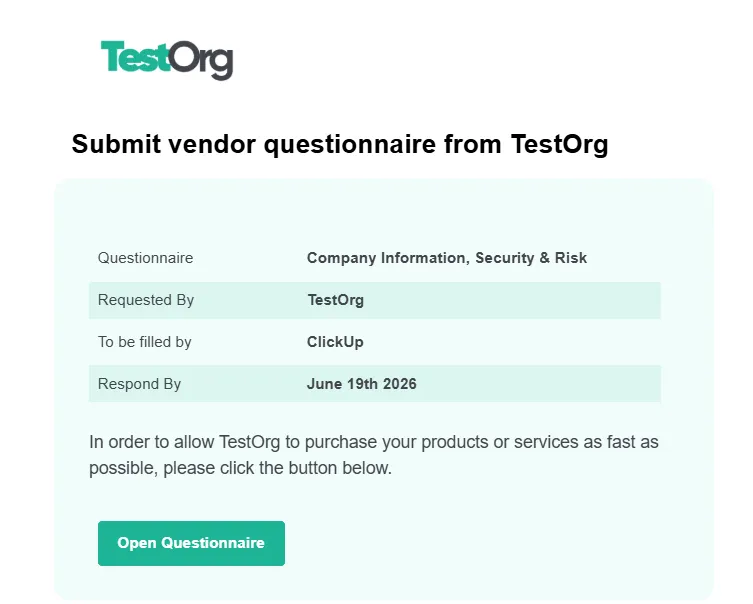
If the email does not arrive, check your spam or junk folder, then ask your contact at the buying company to resend it. They can resend it from the request in Opstream.
4.4.3 Opening the Questionnaire
Click Open Questionnaire. The form opens in your browser. You don’t need an Opstream account or a password, because the link itself identifies you.
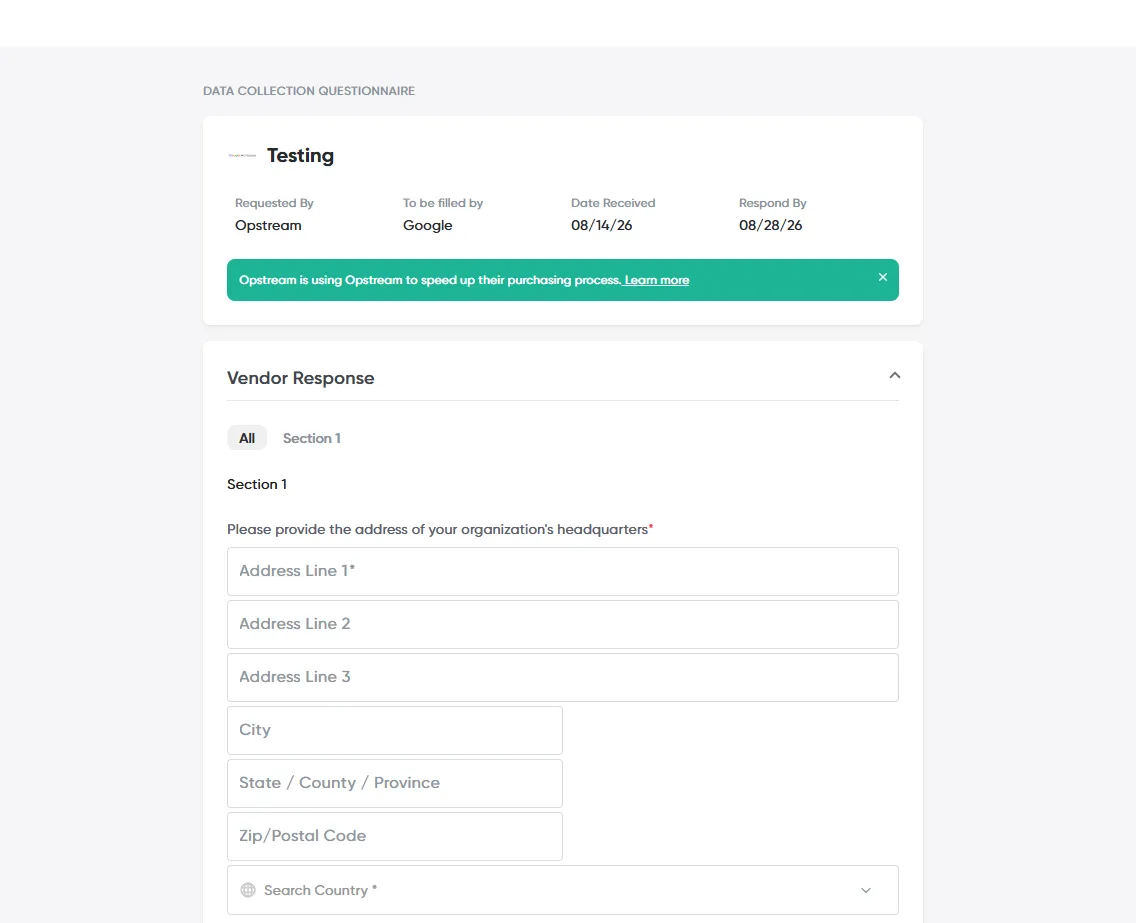
At the top of the page you’ll see:
- the buying company’s logo, labelled Data Collection from
- the Submit and Copy Link buttons
- a summary card with the products or services being bought, Requested By, To be filled by, Date Received and Respond By
4.4.4 Answering the Questions
The questions are under Vendor Response. If the questionnaire has more than one section, use the tabs at the top to show All questions or one section at a time.
- Your answers save as you go. A Saving label appears next to the Opstream logo while a change is being saved. You can close the page and come back to the same link later to carry on.
- Some questions depend on your answers. Questions can appear or disappear depending on what you answer earlier in the form.
- Some answers may already be filled in. Check them and change anything that is wrong.
- Documents. For questions that ask for a file, you can upload a document or paste a link to one.
4.4.5 Sharing with a Colleague
If someone else at your company has the answers (for example, your security or finance team), click Copy Link and send them the link. They can open the same questionnaire and add their answers. Everyone with the link is working on the same form.

Anyone with the link can view and change the answers until the questionnaire is submitted, so only share it with people at your company.
4.4.6 Submitting
When you have finished, click Submit.
- Submit is greyed out while your latest changes are still saving. Wait a moment and try again.
- If a required question is still empty, the form highlights it. Answer it and click Submit again.
- Once submitted, you’ll see a confirmation that your answers will be reviewed by the buying company.
After you submit, the answers are locked. Opening the link again shows your answers read-only, with a Print button for keeping a copy. To change something after submitting, contact the person who sent you the questionnaire.
4.4.7 If the Link Doesn’t Work
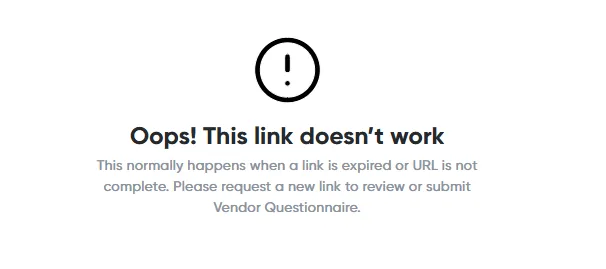
If you see “Oops! This link doesn’t work”, the link has expired or was not copied in full. Links work for up to six months. Ask your contact at the buying company to resend the questionnaire, which gives you a new link.
4.4.8 For Opstream Users: Following Up with a Vendor
-
Answers appear as the vendor works. The vendor’s answers show in the request’s Vendor tab as they are saved, even before the vendor clicks Submit.
-
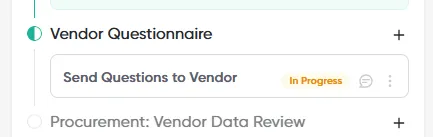
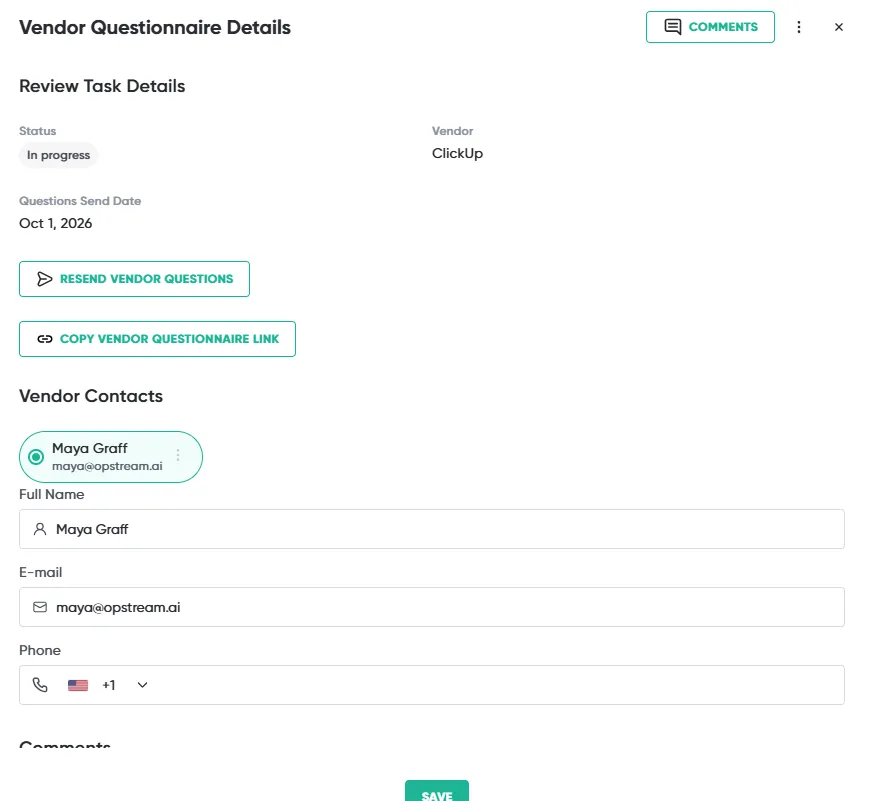
Resending. If the vendor lost the email or the link expired, open the vendor questionnaire from the request’s review timeline and click Resend Vendor Questions. You need to be an Admin or an Approver to resend.
-
Sharing the link yourself. From the same place, use Copy Vendor Questionnaire link to send the link to the vendor through another channel.
-
No automatic reminders. Opstream does not chase the vendor after the first email. Follow up yourself, or resend the questionnaire, if the Respond By date passes.
-
Questions from vendors about the form itself can go to vendor-details@opstream.ai, which is listed in the email.
This site uses anonymous analytics to work out which pages are useful. Visits are not tied to anyone, and nothing you type is recorded. See the Opstream privacy policy.