

5.6 Deep Dive: Custom Lists
5.6.1 What Custom Lists Are
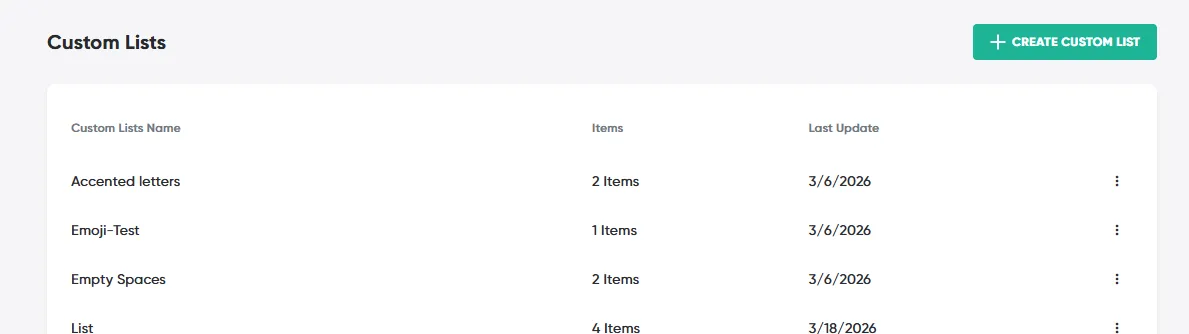
Custom Lists allow Admins to define a reusable set of text-based values once and reference them across multiple schemas, forms, and conditions. Instead of re-entering the same options (for example, Department names, Project Codes, or Vendor Risk tiers) in every question that needs them, you maintain one authoritative list. Any change you make to that list propagates instantly to every question and condition that references it.
Navigation: User Menu → Custom Lists
Who can use this feature: Admins only. Requesters and Approvers interact with the resulting dropdowns in forms but cannot view or modify the underlying lists.
Key benefits:
-
Eliminate duplicated option lists across schemas
-
Keep form choices in sync with business reality without rebuilding questions
-
Use list values as dynamic references inside conditional logic
5.6.2 How to Create a Custom List
-
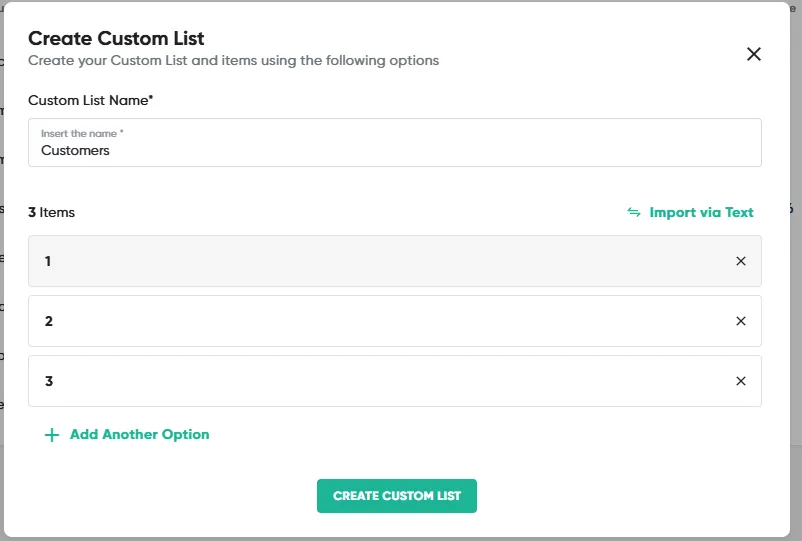
On the Custom Lists page, click ‘Create Custom List’.
-
Enter a clear, descriptive List Name – for example, Department, Project Codes, or Blacklisted Countries.
-
Add items using one of two methods:
-
Method 1 – Add items manually: Click Add Item to insert values one at a time.
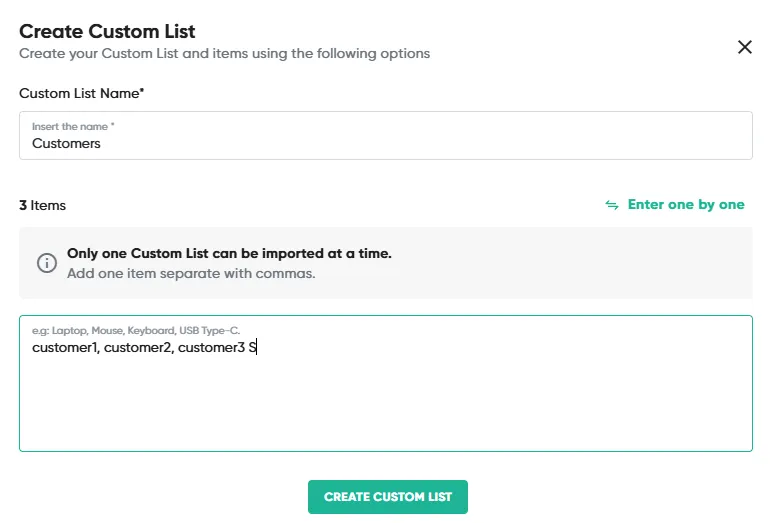
- Method 2 – Paste comma-separated text: Paste a comma-separated string (e.g., Engineering, Finance, Legal, Operations, Security). Each comma creates a new list item.
⚠️ Each list item receives a system-generated unique ID, ensuring stable references even if the display label is later renamed.
5.6.3 Linking a Custom List to a Form Question
E1. Adding a Custom List Q-card
-
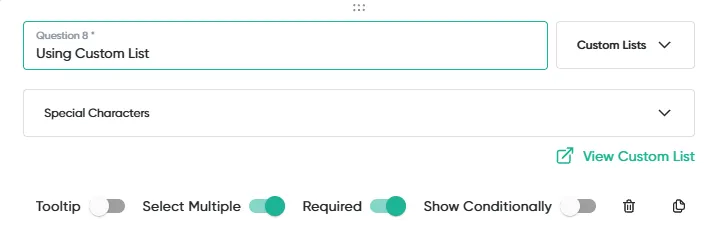
In the Schema Editor, add a new Q-Card and select Custom Lists as the question type.
-
In the Select List dropdown, choose the Custom List you want to use (for example, Project Codes).
-
Configure remaining Q-Card settings as needed and save the schema.
💡 Live sync: If the underlying Custom List is updated after the schema is live, the question automatically reflects the new values – no schema edit is required.
E2. Using Custom Lists in Attribute Configuration
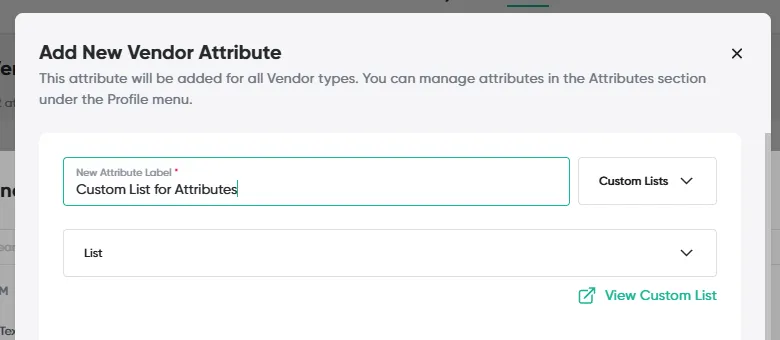
Admins can also associate a Custom List with an attribute by selecting Data Source → Opstream as the attribute type in Admin → Attributes. This allows the same list values to drive both form questions and vendor/software/request attribute fields.
5.6.6 Using Lists in Conditional Rules
Custom Lists can be referenced in the condition builder to power dynamic, list-driven rules across question visibility, approval task assignment, and workflow routing. This enables scenarios such as:
-
Show an additional compliance question only if the selected country is on the High-Risk Countries list.
-
Auto-assign a Legal review task only if the vendor’s category appears in the Regulated Industries list.
-
Route a workflow path differently based on whether a requested project code is on the Active Projects list.
5.6.7 Best Practices
| Practice | Why It Matters |
|---|---|
| Use clear, specific list names (Vendor Risk Tiers not List 1) | Makes lists easy to find in the Source dropdown and condition builder |
| Build lists before building schemas that need them | Avoids placeholder options and reduces rework |
| Use comma-separated import for lists with 10+ items | Faster than manual entry; review parsed items carefully before saving |
| Check dependencies before renaming or removing items | Prevents broken references in live schemas |
| Periodically audit unused lists | Keeps the Custom Lists page clean and easy to navigate |
-
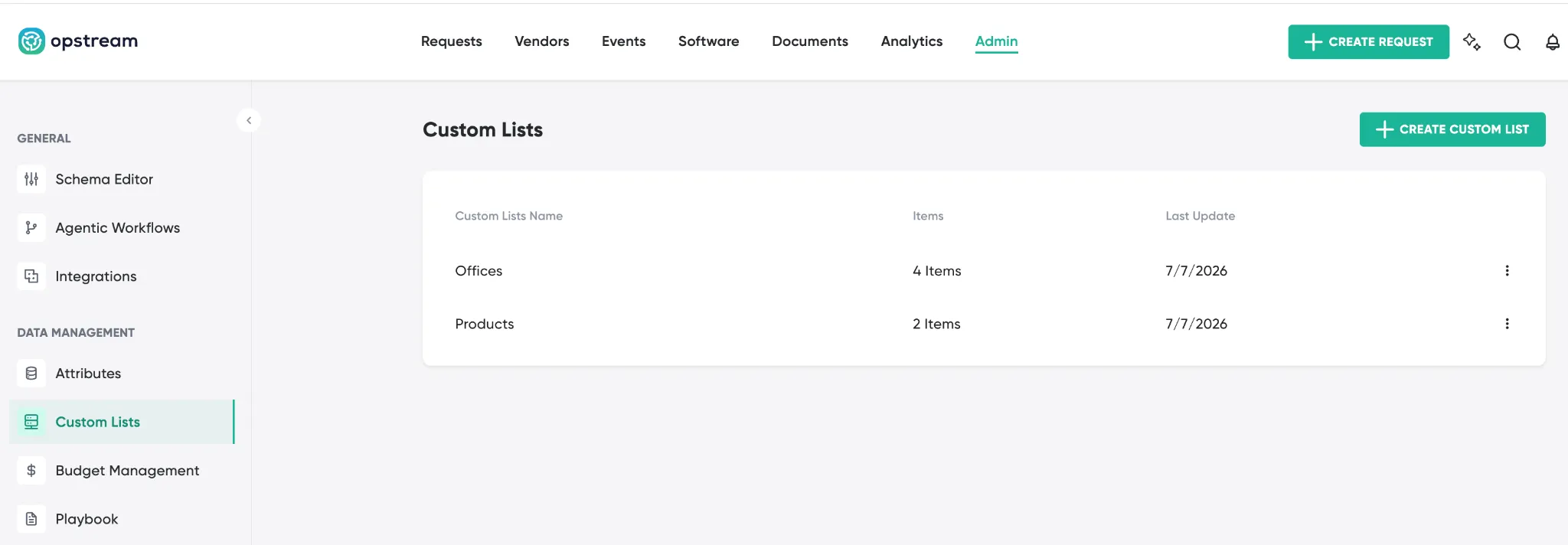
Where to find it: Admin → Custom Lists, under Data Management (also in the corrected §4.3.2 nav map). Available when enabled for your organization.
-
Managing lists: the page lists each list with its Name, Items (count), and Last Update date. Use Create Custom List to add one (name, description, initial items). From the ⋮ row menu: Edit, Duplicate, or Delete. Click a list to manage its items.
This site uses anonymous analytics to work out which pages are useful. Visits are not tied to anyone, and nothing you type is recorded. See the Opstream privacy policy.